
Three small PowerPoint updates that add up to something bigger
For a while, Copilot in PowerPoint felt like a separate step in the process. You asked it to draft something, it produced a first version, and then the real work started once you took over. Over the past few weeks, that gap has gotten smaller. Three updates landed close together, agent mode edits, brand kit and custom skills, and together they show how Copilot is starting to work inside the deck itself, rather than next to it.
In this blog, I want to walk through what each of these updates actually does, what I found when I tried them myself, and where I still see room to grow.
Agent mode: editing across the whole deck at once
The most immediately useful change for me is how agent mode handles bulk edits. Instead of adjusting slides one by one, you can select a set of slides and give Copilot a single instruction that applies across all of them.
I tested this with something simple: select every slide, ask Copilot to change the font to Arial. It worked in one go. No follow-up prompt needed, no manual correction afterward. Copilot picked up the request, applied it consistently across the selection, and respected the rest of the layout.
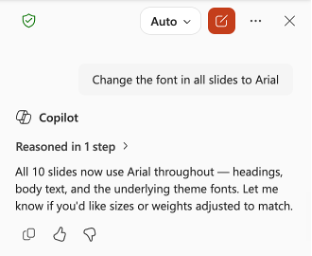
What I like about this is the shift in mindset it represents. This is not about generating new content anymore. It is about treating the deck as something you can instruct, the same way you would brief a colleague who already knows the file. For anyone who manages decks with dozens of slides (like me), that alone can save real time.
I have seen posts online of agent mode struggling when a template uses styled slides instead of a proper slide master, since agent mode honors the master but does not always catch overrides on individual slides. I have not run into that issue yet, but it is worth keeping in mind if your results are less predictable. A clean, well-structured template still matters.
Brand kit: consistency that extends to generated images
Brand kit gives Copilot in PowerPoint access to your organization’s visual identity: logos, colors, fonts and image style, directly from a dedicated brand pane. You select a kit, and Copilot uses it as the foundation for everything it generates from that point on. A real game changer if you ask me!
What stood out to me is how well this carries through to image generation. Asking Copilot to create a visual for a slide used to mean generic stock-style output that needed adjusting to fit the deck. With brand kit selected, the generated images actually follow the same color palette and style as the rest of the presentation.
For organizations that care about brand consistency, and most of the ones I work with do, this closes a gap that agent mode alone could not. Content structure is one thing, but a deck only feels finished when the visuals match too.
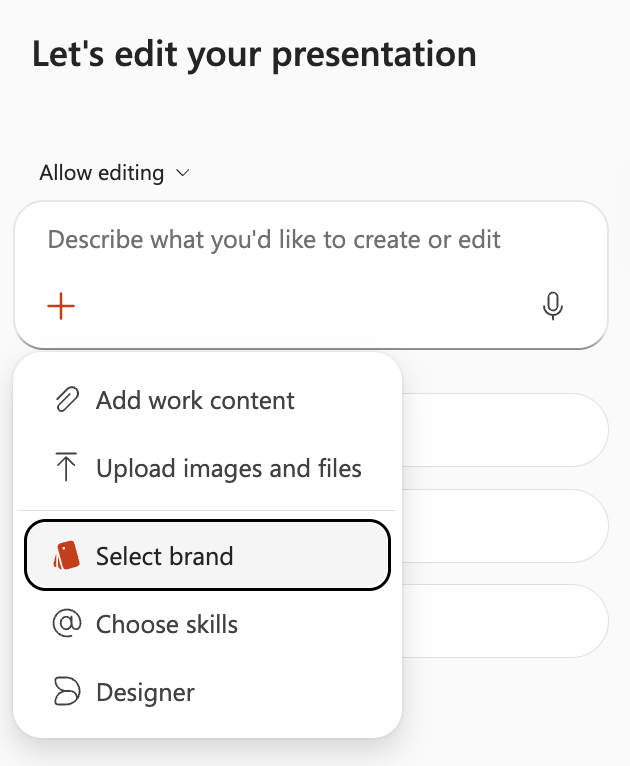
Custom skills: turning your own expertise into something reusable
The update I am most excited about is custom skills. You can now build your own skill directly in PowerPoint Copilot, save it to your OneDrive, and reuse it whenever you need it. A skill is essentially a set of instructions that tells Copilot exactly how you want a specific, repeatable task done.
I built one for something I do often: generating speaker notes for training presentations. As an adoption consultant, I regularly need to turn a slide deck into something a trainer can actually use, with a clear talking point per slide, a suggestion for interaction, a practical example and space for likely questions from the audience. Writing that from scratch every time takes effort, and asking Copilot the same long prompt over and over is not much better.
With a custom skill, I only have to describe that structure once. The skill defines the role Copilot should take, the tone I want, the exact sections each slide’s notes should contain and the quality checks it should run before finishing. Now I select the skill from the Copilot pane, and it applies that entire structure automatically, whether I am working on a Copilot training or a change management session.
A few things to know before you build one. Custom skills are personal for now, stored in your own OneDrive and only visible to your own account, so you cannot yet share a skill with your team directly. And a skill is only as good as the instructions inside it. Mine took a few rounds of refining before the output consistently matched what I actually wanted, but once it did, it kept doing so reliably.

A few things to keep in mind
None of these three features are without limitations. Agent mode depends on how your template is built. Brand kit needs a properly configured kit before it adds value, which is admin work, not something an individual user sets up alone. And custom skills, for now, live in your personal workspace rather than a shared one, so they do not yet help a whole team work the same way.
Availability also still depends on your license and your organization’s settings. If you do not see these options in your own PowerPoint yet, that is often the reason.
Closing thoughts
What connects these three updates is that they all reduce the distance between asking Copilot for something and getting a result you can actually use. Agent mode removes repetitive manual editing. Brand kit removes the disconnect between generated visuals and your existing style. Custom skills remove the need to explain the same task over and over again.
None of this is dramatic on its own. But together, it moves PowerPoint Copilot from a tool you prompt into something closer to a working method, one that starts to remember how you like things done.
