
Meetings: taking minutes of in-person meetings with Copilot and OneNote
In the next few posts, we will focus on my favourite activity: meetings.
Until recently, Microsoft Teams and Copilot mainly played a role in recording and summarising online meetings and assigning follow-up actions. That has now changed, thanks to a tool that offers far more than many people realise. I will explore that tool in more detail in a future post.
What can you do with this new functionality? Record minutes for in-person meetings and then use Copilot to identify and assign follow-up actions.
You have probably already seen the announcements: in the Copilot app, Record (Frontier) allows you to make a recording and then have it summarised or perform other actions using a prompt.

Did you know this feature is also available in OneNote? In this post, I will cover everything you need to know about it. It offers much more than simply transcribing your conversation. In effect, you create a workspace that brings together all the information, transcripts and outputs for a specific type of meeting.
Before you begin
Before we look at how it works, there are a few important things you need to know:
- You need the OneNote app on your phone.
- The functionality is located in a section of the OneNote app called Copilot Notebooks. These are not the existing notebooks you already use, so in many cases you will need to create a new one.
- You need a Copilot licence.
- You can find full details about the recording limitations here: Use Capture in Copilot Notebooks on iPhone and Windows | Microsoft Support

How does it work?
- Open the OneNote app on your iPhone and go to Copilot Notebooks. Please note that this is separate from your ‘regular’ notebooks.
- Tap the record button and select ‘Agree’ to give permission for the recording.
- Place your phone in the centre of the table so that everyone can be heard clearly.
And you are ready to go!

The feature can already distinguish between speakers and reflect this in the transcript. By default, the transcript does not yet know who each speaker is. To identify them, you can ask follow-up questions in Copilot or use the Copilot app within OneNote on your laptop.
Tip: create a separate Copilot OneNote Notebook for each type of meeting. These are the same notebooks you will find under the Notebooks button in the Copilot app. This allows you to add instructions for each notebook, group meetings together, create summaries and more.
For example, I created a Copilot OneNote Notebook for my department meetings and use it as a workspace. You can also add specific sources to this workspace.
This creates a space where you can bring together all your meeting transcripts, add sources containing relevant information and do much more. Copilot can then prioritise this information when answering questions within this ‘workspace’, or Notebook.
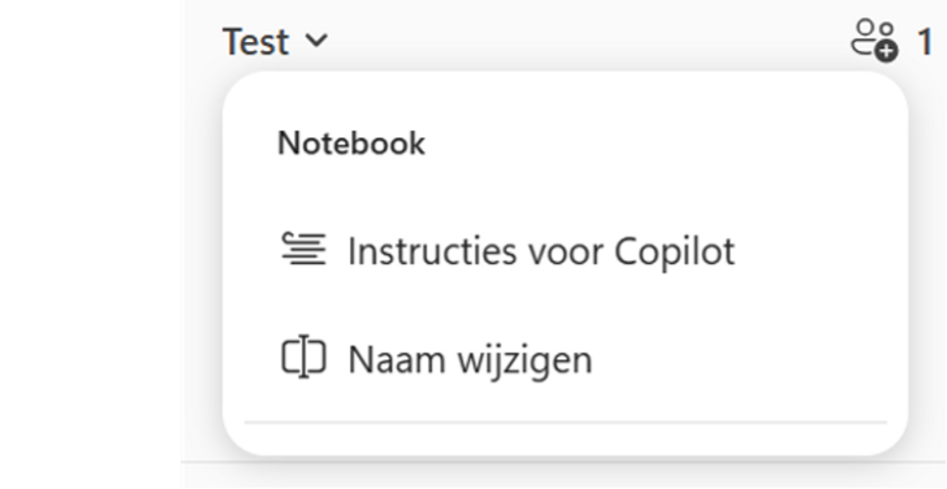
You can also provide instructions to this workspace and to the Copilot that ‘lives’ within it. To do this, select the arrow next to your name.
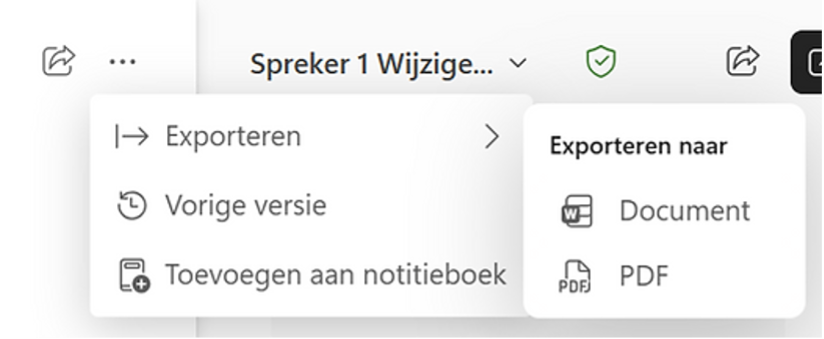
You can easily export outputs, summaries and transcripts by selecting the three dots at the top of the notebook.
Want to know more? I will definitely share more about this functionality, as it is still evolving rapidly!
